
The Evolution of the Dining Workflow
For decades, the restaurant dining experience followed an unchanged, sequential ritual: guests were seated, waited several minutes for a physical menu card, called a server to place their order, waited while the server walked across the room to punch it into an on-premise POS terminal, and hoped the kitchen received the order without errors. Mid-meal reorders and bill settlement followed the exact same slow pattern.
Modern QR ordering transforms this disjointed process into a synchronized, real-time digital workflow. By turning every diner's personal smartphone into an interactive terminal, restaurants eliminate communication delays, minimize order mistakes, and speed up table turnover.

Zero app installation required. Over 85% of diners cite mandatory app downloads as an immediate dealbreaker. A proper QR ordering workflow must open natively in the mobile web browser within 2 seconds of scanning.
The 5-Step ScanDine Operational Workflow
Step 1: The Table Scan & Session Initialization
Each dining table is equipped with a distinct acrylic standee, wooden table block, or durable sticker encoded with a unique URL containing the encrypted table ID (e.g., https://www.scandine.org/m/t/14). When a diner opens their phone's native camera and taps the detected banner:
- The browser establishes a secure, encrypted WebSocket connection with the restaurant's live floor session.
- If the guest was previously registered in the restaurant's waiting queue, the system automatically binds their contact profile to Table 14 via smart autofill.
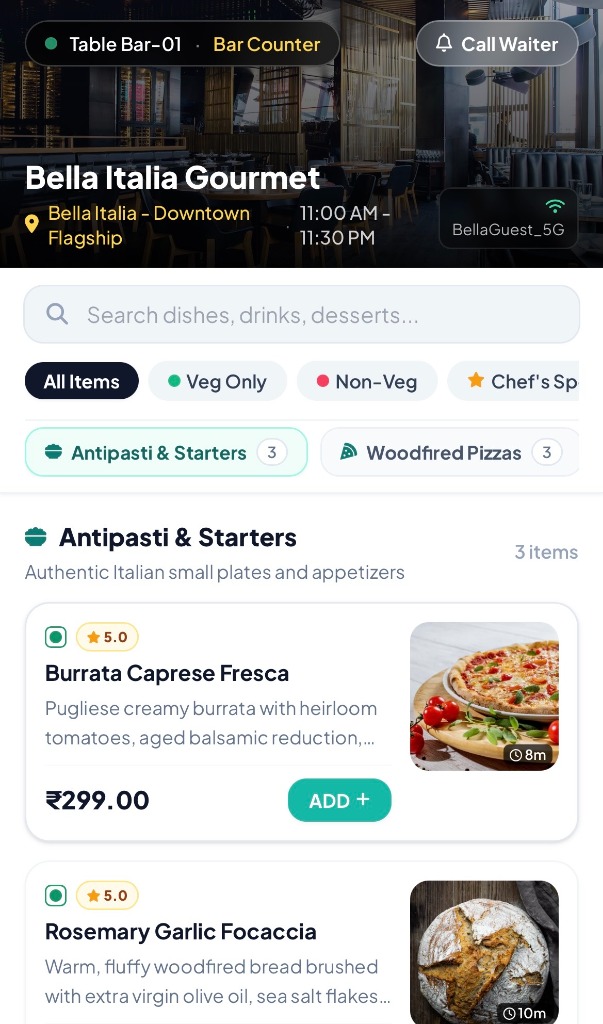
- The live digital menu loads instantly with current pricing, seasonal specials, and real-time stock availability.
Step 2: Visual Browsing, Search & Customization
Unlike static paper menus or bulky PDF files, an interactive digital menu allows diners to:
- Filter items instantly by dietary preferences: Pure Veg (Green Dot), Non-Veg (Red Dot), Jain, Vegan, and Chef's Recommended.
- Browse mouthwatering high-resolution photography for every dish.
- Customize choices using intuitive modifier groups (e.g., Spice Level: Mild / Medium / Kolhapuri Hot; Crust: Thin Crust / Cheese Burst).
- Enter special cooking requests or allergy notes directly on individual items.
Step 3: Instant Dispatch to Kitchen Display Systems (KDS)
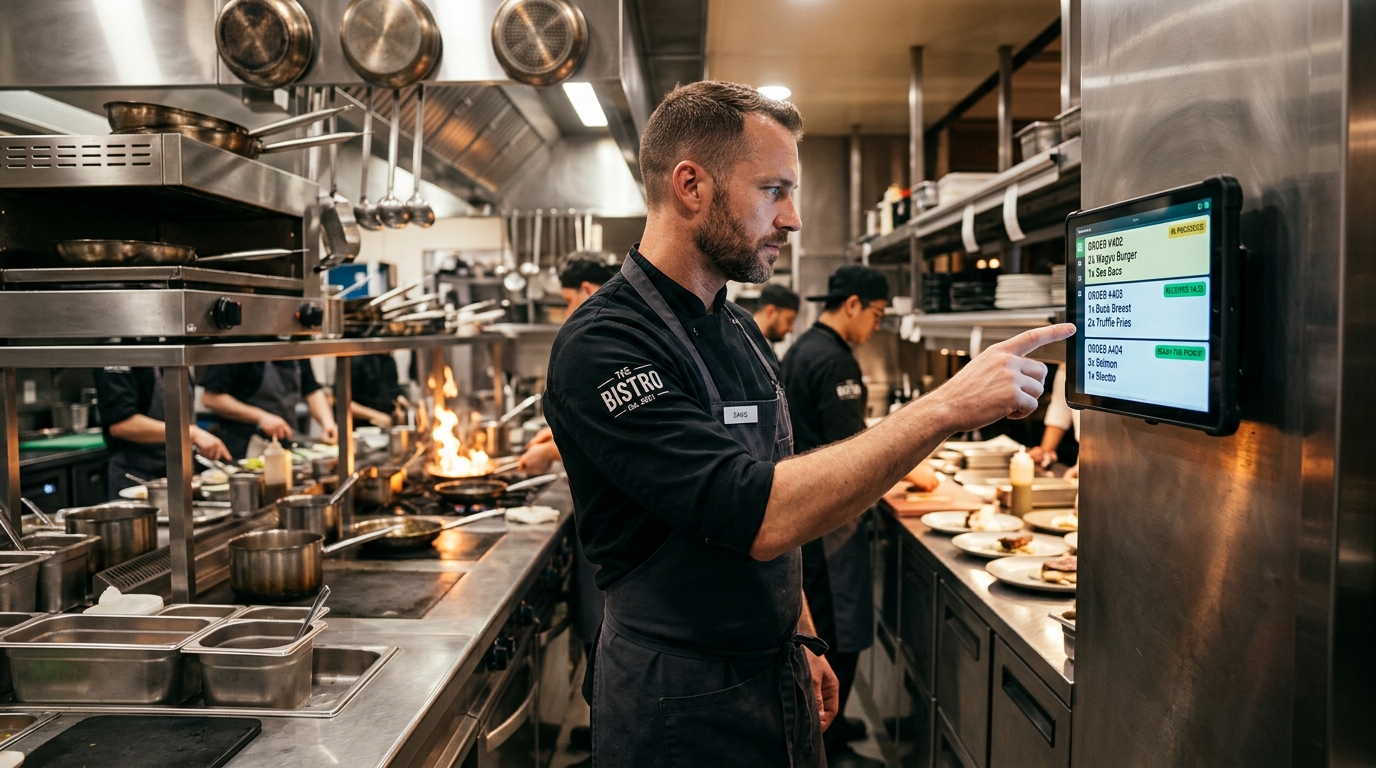
When the diner taps "Place Order", the payload does not wait in an email inbox or require manual POS transcription. Within 200 milliseconds:
- The order is routed across WebSockets directly to the kitchen line tablet or monitor.
- A pleasant audio chime alerts the head chef to a new incoming ticket.
- The ticket displays Table 14, timestamp, item details, add-on modifiers, and custom chef notes.
- If the restaurant operates multiple prep stations (e.g., Bar station vs Tandoor vs Main Curry station), the system splits items to the appropriate departmental screens automatically.
Step 4: Waiter Alerting & Food Delivery
The waiter's smartphone captain app synchronizes with the kitchen state in real time:
- When the chef taps "Mark Prepared" on the KDS, the assigned section waiter receives a push notification and gentle vibration.
- The server picks up hot dishes immediately from the pass, eliminating cold food complaints.
- Servers also receive direct alerts whenever guests tap the in-app "Call Server" or "Request Water" buttons.
Step 5: Effortless Reorders & Contactless Checkout
During a typical 45-minute meal, guests frequently desire another beverage, extra bread, or dessert. Instead of looking around for a server, they simply reopen their active table tab on their phone, add the item, and tap reorder. When finished, guests review their live running bill, apply discounts or tips, and pay securely via instant UPI (Google Pay, PhonePe, Paytm) or request a cash/card terminal.
Comparing Workflows: Traditional POS vs ScanDine QR
| Step in Guest Journey | Traditional Paper & POS Method | ScanDine Digital QR Workflow |
|---|---|---|
| Menu Delivery | Wait 3–7 mins for server to bring physical menus | Instant (0 seconds upon sitting) |
| Order Taking | Server writes notes by hand, walks to counter, punches POS | Customer selects & dispatches straight to kitchen |
| Order Accuracy | Misheard verbal modifications, illegible slips | 100% exact customer selected modifiers |
| Mid-Meal Reorders | Flagging down server during busy rush takes 5–10 mins | 1-tap reorder from phone in 10 seconds |
| Bill Settlement | Ask for bill → wait for printout → card swipe → receipt | Tap Request Bill or pay via UPI QR directly |
Best Practices for Table QR Hardware Placement
To maximize customer adoption and ensure smooth scanning:
- Use Vertical Acrylic Tent Stands: Flat stickers can easily be covered by plates, glassware, or cutlery. Vertical stands remain visible from all angles.
- High Contrast Printing: Ensure dark QR codes on pristine white backgrounds with minimum 3.5cm x 3.5cm dimensions to facilitate instant camera focus.
- Add Clear Scan Instructions: Include brief friendly text such as: "Point your phone camera to view full photo menu and order."
Experience the Live Workflow
Want to see how this works in real time? Try our interactive Live Restaurant Workflow Player or schedule a personalized 1-on-1 walkthrough with our restaurant technology experts.